
Visit Webmail
AA Mail Server will auto create virtual directory ("/mail" as default) in IIS for you after installation. Now let's check if your Webmail has been installed successfully or not. Just press F9 in AA Mail Server, or enter "http://127.0.0.1/mail" in Internet Explorer to see if Webmail runs ready.
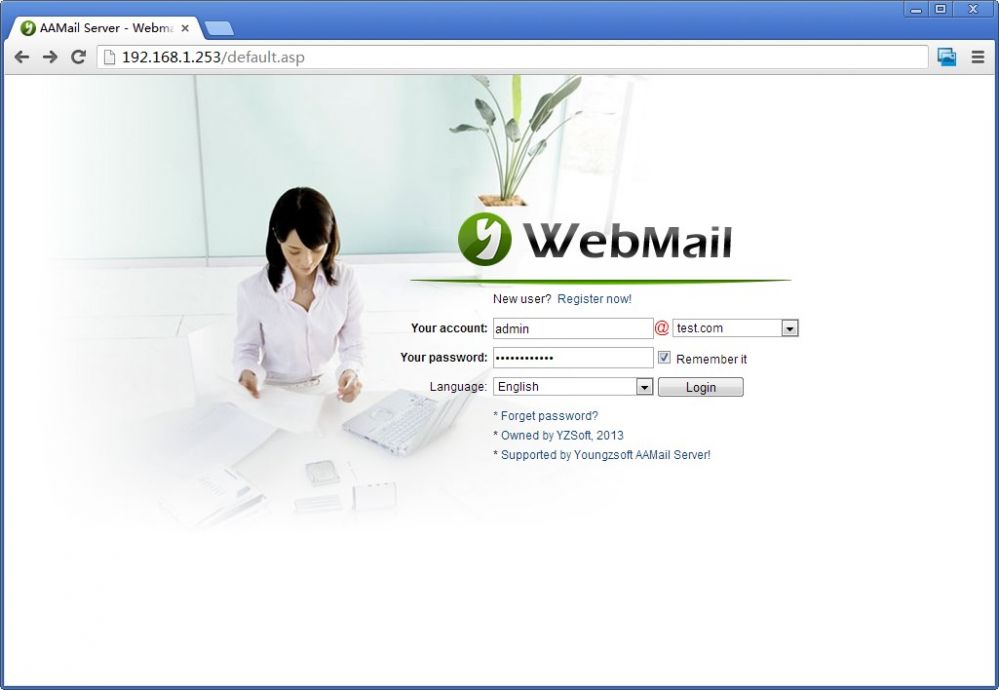
If login page displays, Webmail is running ready and you can go next step: Step 6. Configure domain MX. If NOT, there are something settings wrong on your server. Please open IE's "Tool => Options => Advanced" tab, check off "Display HTTP friendly error message" option. Re-visit Webmail and now you will get meaningful error messages.
What are possible problems?
Please note that Windows IIS component is required for Webmail. If it is Windows 2000, you need to install latest pathes. If you have not installed IIS, please add it from your windows CD. After IIS installed, run "Tool => Re-Install Webmail" menu command in AA Mail Server and re-visit Webmail.
1. Open "Control Panel => Administration Tools => Internet Information Server (IIS)", check if there is a node with name "mail" . If NOT, you can add this application with "c:\aamailpro\web" manually.
2. If it is Windows 2003, check IIS settings (Web Service Extensions) to see if you have enabled "Active Server Pages" option. Please enable it and then re-try to visit Webmail.
3. Check if "Default site" in IIS is running. If it stopped, restart it. Then right click "mail" node, choose "Browse" menu command, try to visit it in IIS.
4. Feedback the meaningful error message and your MSN to support@aamailsoft.com, and we will give you instructions to solve more complex problems. Sometimes we will help you via remote control support.


